
User Guide: How to Create and Publish Your First Post
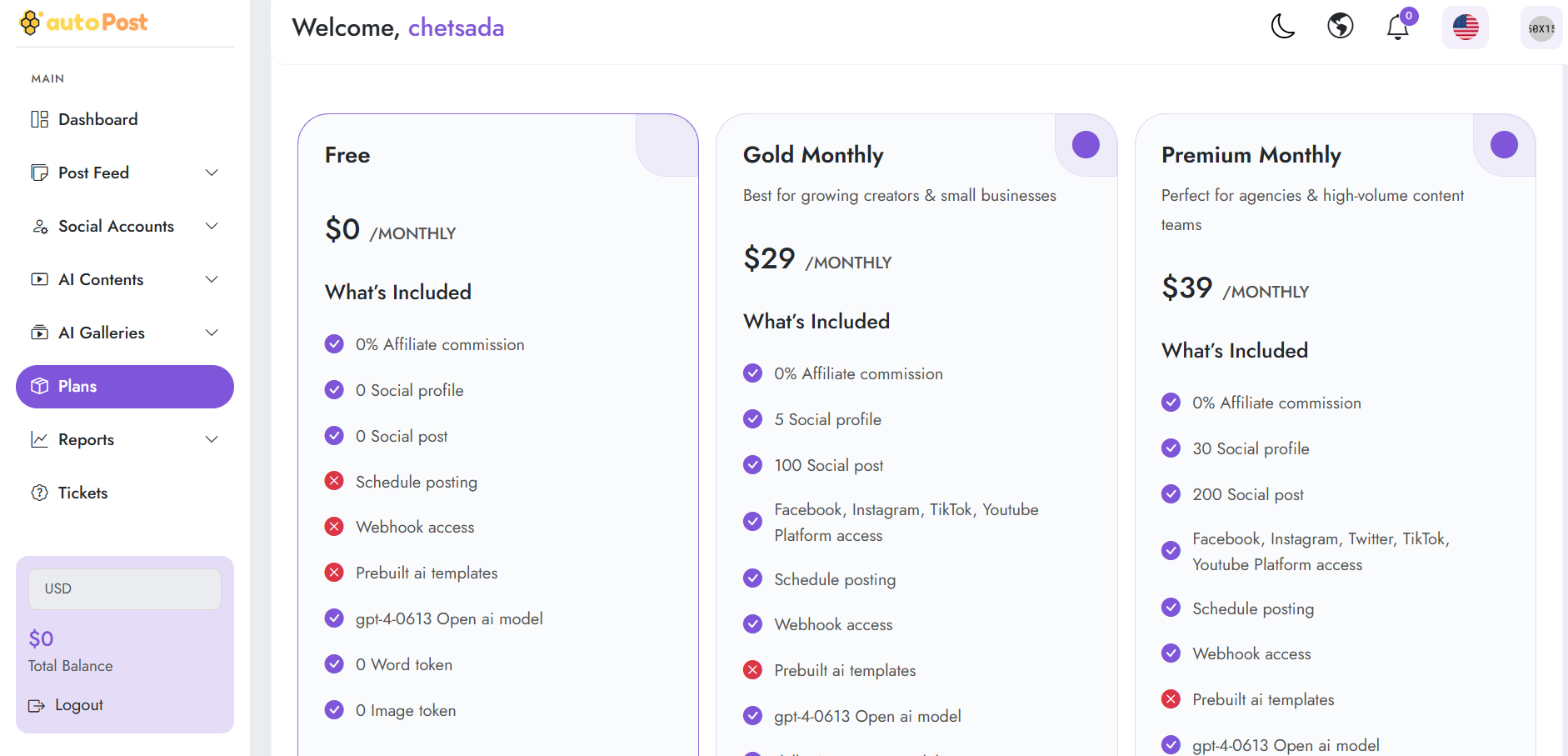
After topping up your balance and selecting your package, you are ready to create and distribute your marketing content across multiple social media platforms using the Post Feed feature. Follow these steps to set up your post:
Step 1: Navigate to the Post Creation Page
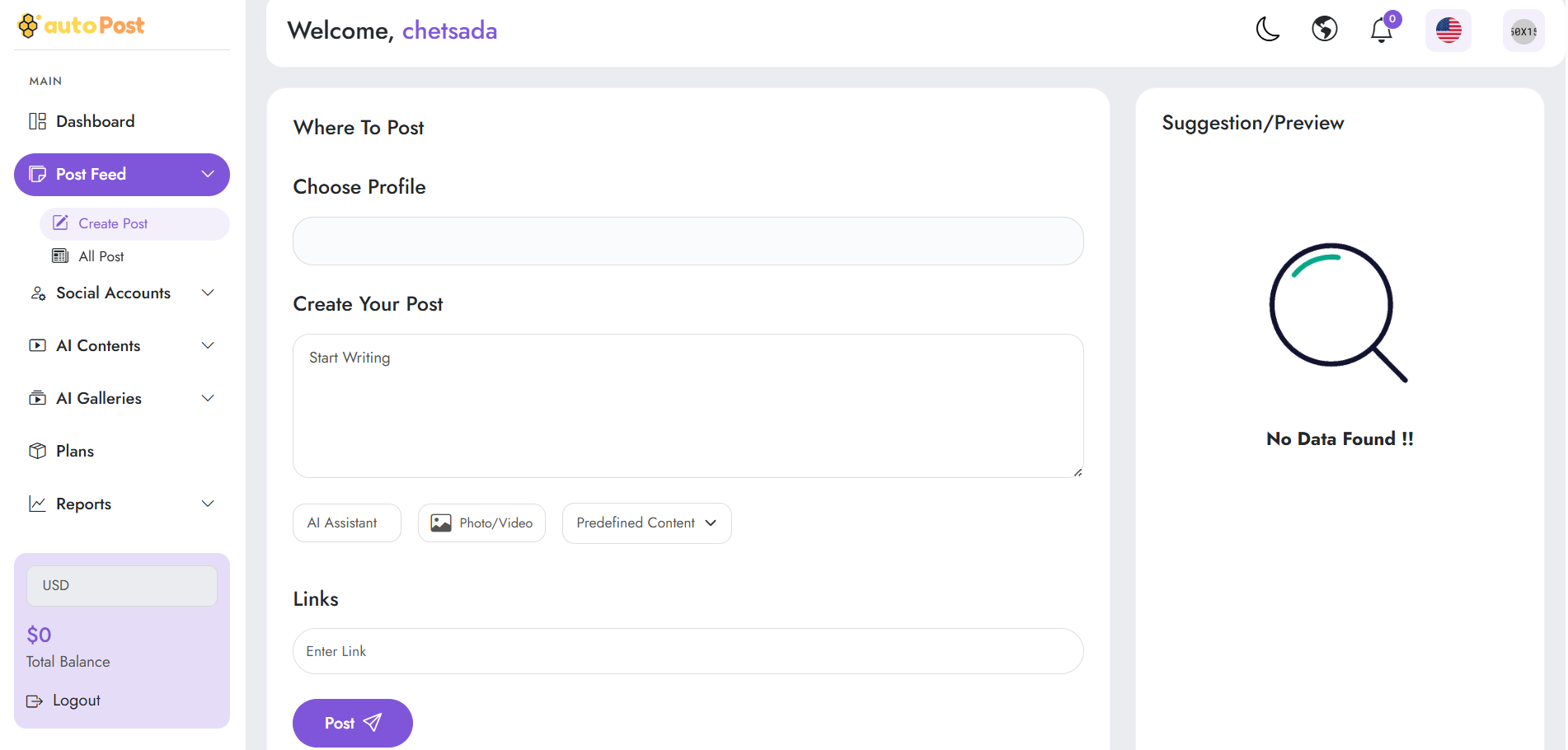
From the left-hand sidebar menu, click on Post Feed (under the MAIN section) and select Create Post to open the post editor dashboard.
Step 2: Choose Your Profile (Where to Post)
Choose Profile: Click on the selection box to choose the connected social media accounts, pages, or groups where you want your post to appear.
Step 3: Write and Design Your Content (Create Your Post)
Start Writing: Type your engaging caption, marketing copy, or promotional text directly into the main text box. You can also utilize tools like AI Assistant, upload media via Photo/Video, or select Predefined Content to save time.
Step 4: Add Links and Publish
Enter Link: Paste your target website, landing page, or product link into the Links field to drive traffic from your post.
Post: Review your content preview on the right-hand side panel, then click the Post button at the bottom to publish your content instantly.